
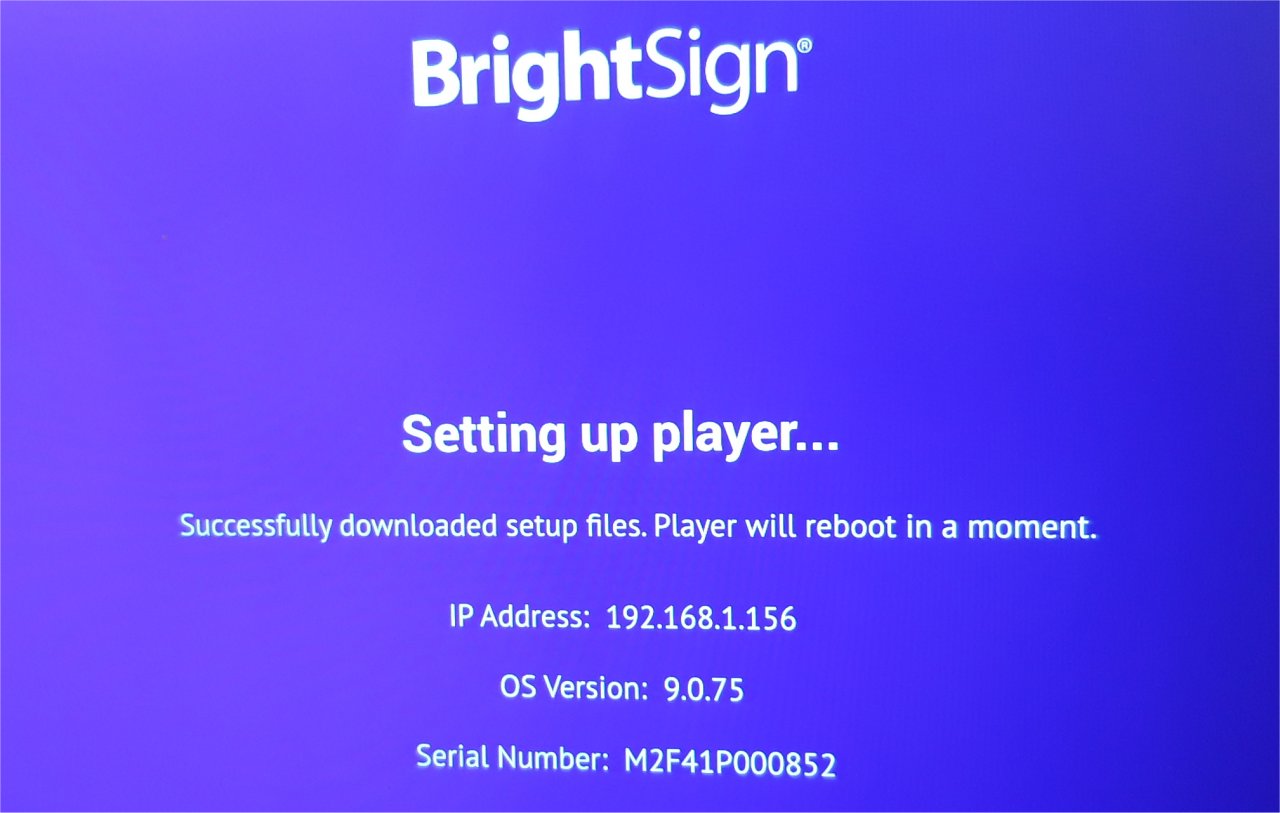
Digital signage is growing fast in Dubai — from malls to restaurants to offices, screens are everywhere. If you've chosen a BrightSign player for your digital signage setup, great choice. BrightSign devices are known for reliability, 4K playback, and flexibility. But if you're new, the question is: how do you set up a BrightSign player the right way?
What You Need Before You Start
- A BrightSign player (LS, HD, XD, or XT)
- HDMI cable to connect to your display
- Power adapter (use a surge protector or UPS — a must in Dubai)
- Ethernet cable (preferred) or Wi-Fi details
- MicroSD card (if required by your model)
- A laptop with BrightAuthor or BrightAuthor:connected installed
- (Optional) BrightSign Network account for cloud management
Step 1: Unbox and Check Your BrightSign Player
Open the box and make sure everything is in good condition. Note down the serial number on the back of the player — you'll need it later if you plan to use BrightSign Network.
Step 2: Connect and Mount the Player
- Place or mount the player behind your display, in a rack, or on a shelf
- In Dubai, avoid direct sunlight or enclosed, dusty spaces — heat can cause issues
- Connect HDMI from the player to your display
- Connect to the internet via Ethernet cable (recommended)
- Finally, plug in the power supply
Step 3: Set Up the Network
Ethernet setup (best for Dubai installations)
- Plug in the cable — most setups use automatic IP (DHCP)
- If your company requires a static IP, ask your IT team for the details
Wi-Fi setup
Some models allow Wi-Fi setup directly on the display screen. Otherwise, configure it using BrightAuthor.
Tip: Ethernet is more reliable in Dubai malls and offices where Wi-Fi can be unstable.
Step 4: Create Your Content
- Install BrightAuthor on your laptop
- Start a new project and set resolution (Full HD or 4K)
- Add media: videos, images, or even interactive menus
- Build your playlist and schedule when content should run
Step 5: Publish to the Player
There are three ways to load your content onto the BrightSign player:
- SD card / USB: Export content from BrightAuthor, load it onto the card/USB, insert, and restart the player
- Local network: If your laptop and player are on the same network, publish directly
- BrightSign Network (cloud): Best if you're managing multiple screens across Dubai. Register your device with the serial number, upload content, and publish remotely
Step 6: Test and Go Live
- Confirm the content is playing correctly
- Adjust the schedule for Dubai time zone (UTC+4)
- Let it run for at least 30 minutes to ensure stability
Troubleshooting Common Issues
- Black screen: Check HDMI input and cable
- No network connection: Confirm Ethernet cable or Wi-Fi password
- Choppy playback: Use a faster SD card and optimized video formats (H.264/H.265)
- Unexpected restarts: Improve ventilation — Dubai heat can cause overheating